 Tidylane
흩어진 창을,
단축키 하나로 나란히.
Scattered windows,
side by side in one keystroke.
Tidylane은 Mac 메뉴바 앱입니다. ⌥⌘A 를 누르면 지금 쓰는 앱의 창들이 화면에 나란히 정렬됩니다. VS Code 창 3개면 3등분, 4개면 4등분. Tidylane lives in your Mac menu bar. Press ⌥⌘A and every window of the app you're using lines up across the screen — three windows, three columns.
할 수 있는 것What it does
마우스로 창을 끌어 맞추지 않아도 됩니다.No more dragging windows into place.
앱 창 나란히Tile an app's windows
앞에 있는 앱의 창만 골라 세로(⌥⌘A) 또는 가로(⌥⇧⌘A)로 똑같이 나눕니다. 다른 앱 창은 그대로 둡니다. Splits only the front app's windows into equal columns (⌥⌘A) or rows (⌥⇧⌘A). Other apps stay put.
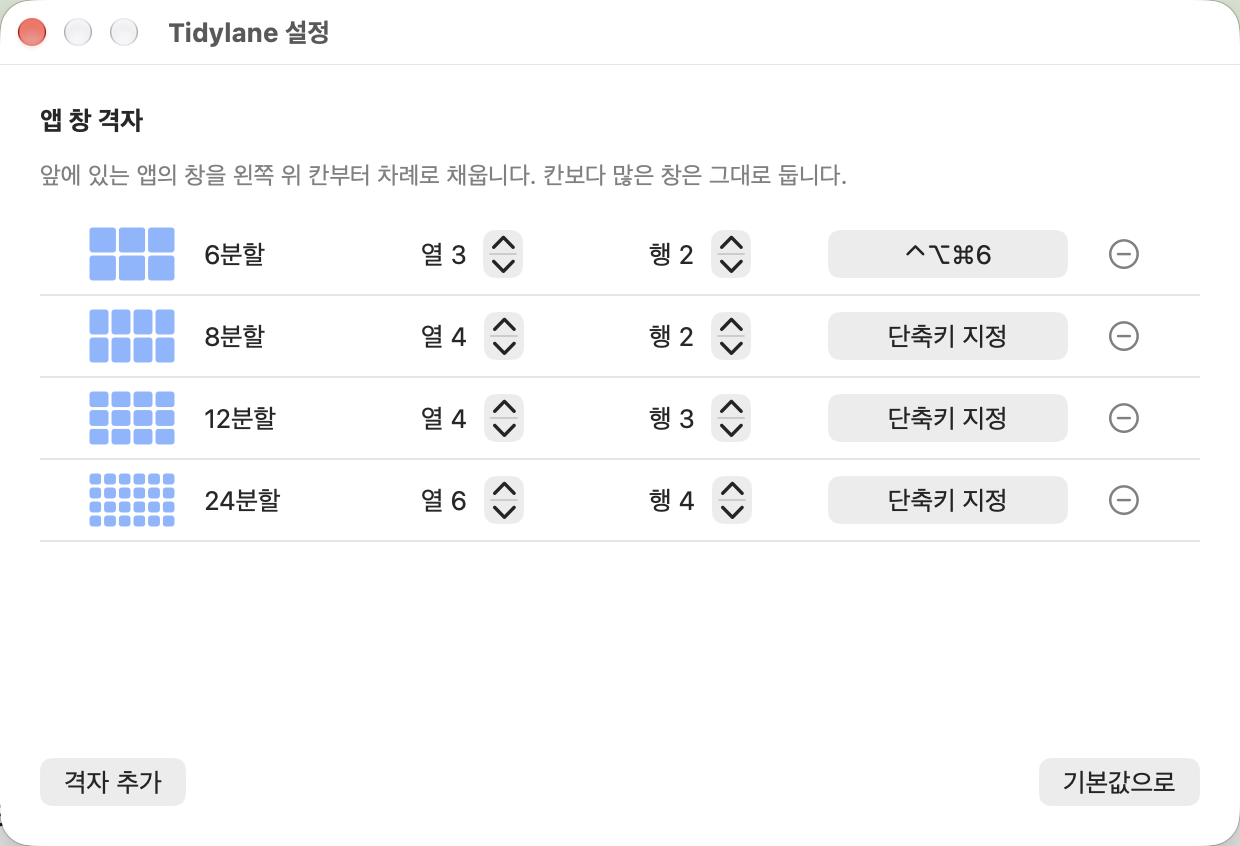
격자 6·8·12·24분할Grids up to 12×12
3×2, 4×2, 4×3, 6×4 격자가 기본으로 있고, 설정에서 열×행을 직접 만들어 단축키를 붙일 수 있습니다. 3×2, 4×2, 4×3 and 6×4 grids are built in. Make your own columns × rows in Settings and give each a shortcut.
절반·4분할·3분할Halves, quarters, thirds
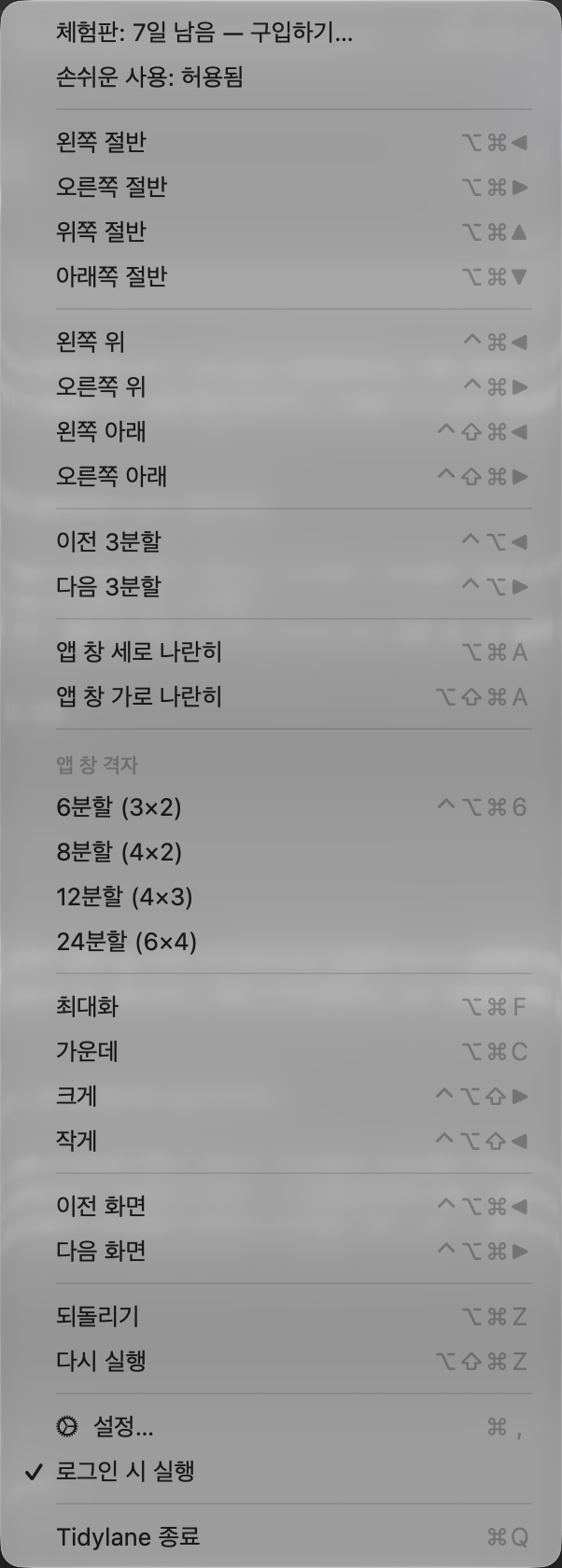
익숙한 기본 단축키로 창 하나를 절반·모서리·3분할·최대화·가운데로 보내고, ⌥⌘Z 로 되돌립니다. Send one window to a half, corner, third, full screen or center with familiar shortcuts — and undo with ⌥⌘Z.
기본 단축키Default shortcuts
메뉴바 아이콘을 눌러도 같은 동작을 고를 수 있습니다.Every action is also in the menu bar menu.
| 동작Action | 단축키Shortcut |
|---|---|
| 앱 창 세로 나란히Tile app windows in columns | ⌥⌘A |
| 앱 창 가로 나란히Tile app windows in rows | ⌥⇧⌘A |
| 왼쪽·오른쪽·위쪽·아래쪽 절반Left / right / top / bottom half | ⌥⌘← ⌥⌘→ ⌥⌘↑ ⌥⌘↓ |
| 왼쪽 위·오른쪽 위Top left / top right | ⌃⌘← ⌃⌘→ |
| 왼쪽 아래·오른쪽 아래Bottom left / bottom right | ⌃⇧⌘← ⌃⇧⌘→ |
| 이전·다음 3분할Previous / next third | ⌃⌥← ⌃⌥→ |
| 최대화 · 가운데Maximize · Center | ⌥⌘F ⌥⌘C |
| 크게 · 작게Larger · Smaller | ⌃⌥⇧→ ⌃⌥⇧← |
| 다음·이전 화면Next / previous display | ⌃⌥⌘→ ⌃⌥⌘← |
| 되돌리기 · 다시 실행Undo · Redo | ⌥⌘Z ⌥⇧⌘Z |
앱 화면Screenshots
한 번 사면 계속Buy once, keep it
구독 없음 · 7일 무료 체험 · 결제와 영수증은 판매 대행사 Polar가 처리합니다. No subscription · 7-day free trial · Checkout and receipts handled by our reseller, Polar.
판매 준비 중Coming soon자주 묻는 질문FAQ
처음 실행하면 「손쉬운 사용」 권한을 묻습니다. 왜 필요한가요?Why does it ask for Accessibility access?
다른 앱의 창 위치와 크기를 바꾸려면 macOS의 손쉬운 사용 권한이 꼭 필요합니다. 시스템 설정 → 개인정보 보호 및 보안 → 손쉬운 사용에서 Tidylane을 켜 주세요. 창 내용이나 화면은 읽지 않습니다. macOS only lets an app move and resize other apps' windows with Accessibility access. Turn on Tidylane in System Settings → Privacy & Security → Accessibility. It never reads window contents or your screen.
App Store에는 왜 없나요?Why isn't it on the App Store?
App Store 앱은 샌드박스 안에서만 돌아야 하는데, 샌드박스 안에서는 다른 앱의 창을 옮길 수 없습니다. 그래서 Apple 공증을 받은 앱을 이 사이트에서 직접 배포합니다. App Store apps must run in a sandbox, and sandboxed apps can't move other apps' windows. So we distribute an Apple-notarized build directly from this site.
어떤 정보가 밖으로 나가나요?What data leaves my Mac?
창 위치와 앱 목록은 Mac 밖으로 보내지 않습니다. 라이선스를 등록하거나 확인할 때 라이선스 키와 기기 식별값(하드웨어 UUID를 바꾼 해시)을 Polar에 보내고, 업데이트를 확인할 때 이 사이트의 업데이트 목록을 읽습니다. Window positions and app lists never leave your Mac. Activating or checking a license sends the key and a device identifier (a hash of the hardware UUID) to Polar, and update checks read the update feed on this site.
창이 원하는 크기로 안 바뀌어요.A window won't resize the way I want.
앱마다 최소 창 크기가 있어서, 칸이 그보다 좁으면 그 앱이 크기를 거부합니다. 칸 수를 줄이거나(예: 4분할 → 3분할) 큰 화면에서 써 보세요. Apps set a minimum window size. If a cell is smaller than that, the app refuses to shrink. Use fewer cells or a larger display.